Metafields Guru July 2021 update: metafield sets and a rebuilt browser extension

In July 2021, Metafields Guru introduced metafield sets - a way to configure a group of metafields once and apply it across many products at once, instead of creating each metafield one product at a time. The same update also shipped a rebuilt version of the browser extension with a new WYSIWYG editor and metafield sets support.
What's new at a glance
- Metafield sets - configure a group of metafields once and apply it to all products, or to a filtered selection by vendor, product type, or tag.
- Eight field types to build a set with: Plain Text, HTML, Integer, Float (decimal), JSON, Select, Multiselect, and Boolean.
- Rebuilt browser extension - now with a WYSIWYG editor and metafield sets support.
- Full Shopify admin language compatibility in the browser extension.
Introducing metafield sets
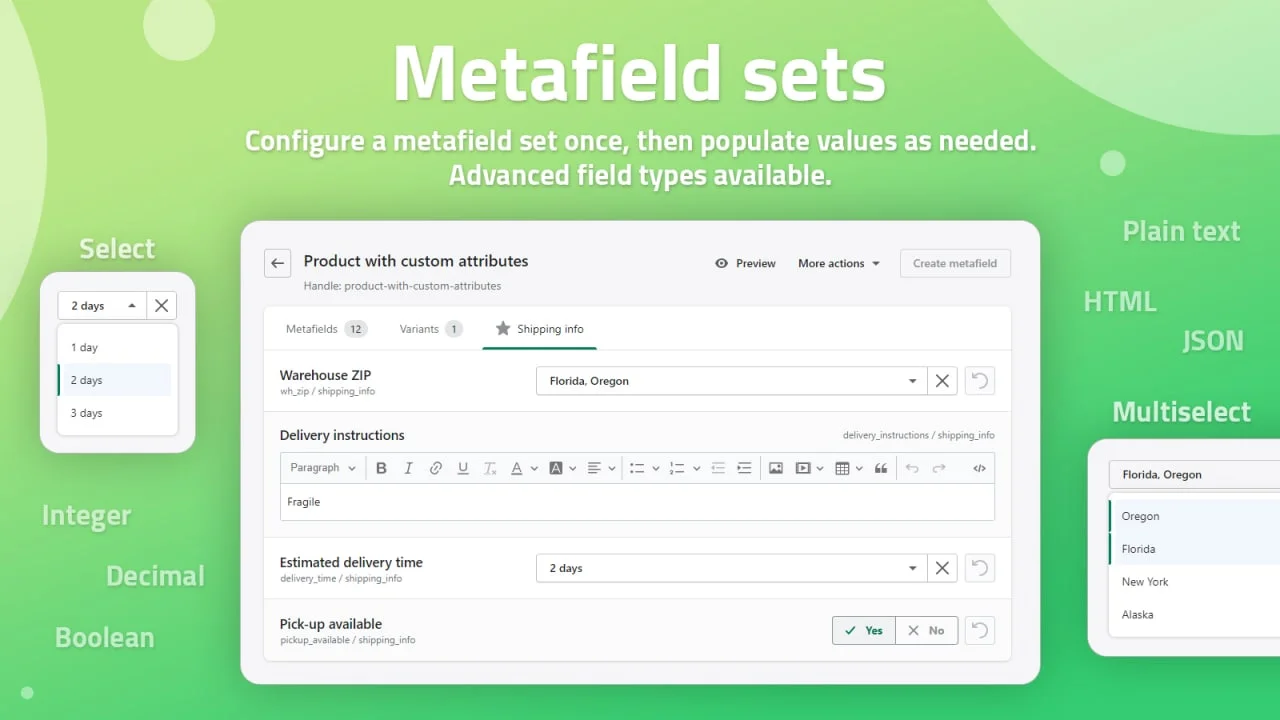
Available for our advanced plans, metafield set is a feature that allows you create groups of metafields to be applied to all the entities of a specific resource type; let's say to all products.
Or you can create a set for a filtered selection: for products of a specific vendor, products of a certain product type or products with a specific tag.
Instead of creating numerous metafields for each product one-by-one, you can now configure a metafield set once and add values to products as needed. Not only it saves time, but also eliminates the need to hassle with the technical details like metafield namespace, key, value type - populate the value, save changes and that's it!
Choose from an extensive list of field types to configure your metafield sets perfectly:
- Plain Text - a basic text field with no HTML support. Customizable value autocomplete included.
- HTML - an advanced text field with full HTML support and WYSIWYG (visual) editor available.
- Integer - a number that can be written without a fractional component.
- Float (decimal) - a number whose fractional part is separated by a decimal point (or comma).
- JSON - a standard text-based format for representing structured data.
- Select - allows merchants choose one option from an options menu.
- Multiselect - allows merchants choose multiple options from an options menu.
- Boolean - a form of data with only two possible values ("yes/no", "1/0", "true/false" etc).
Learn more about metafield sets from a step-by-step guide on our Help Portal.
New version of browser extension available
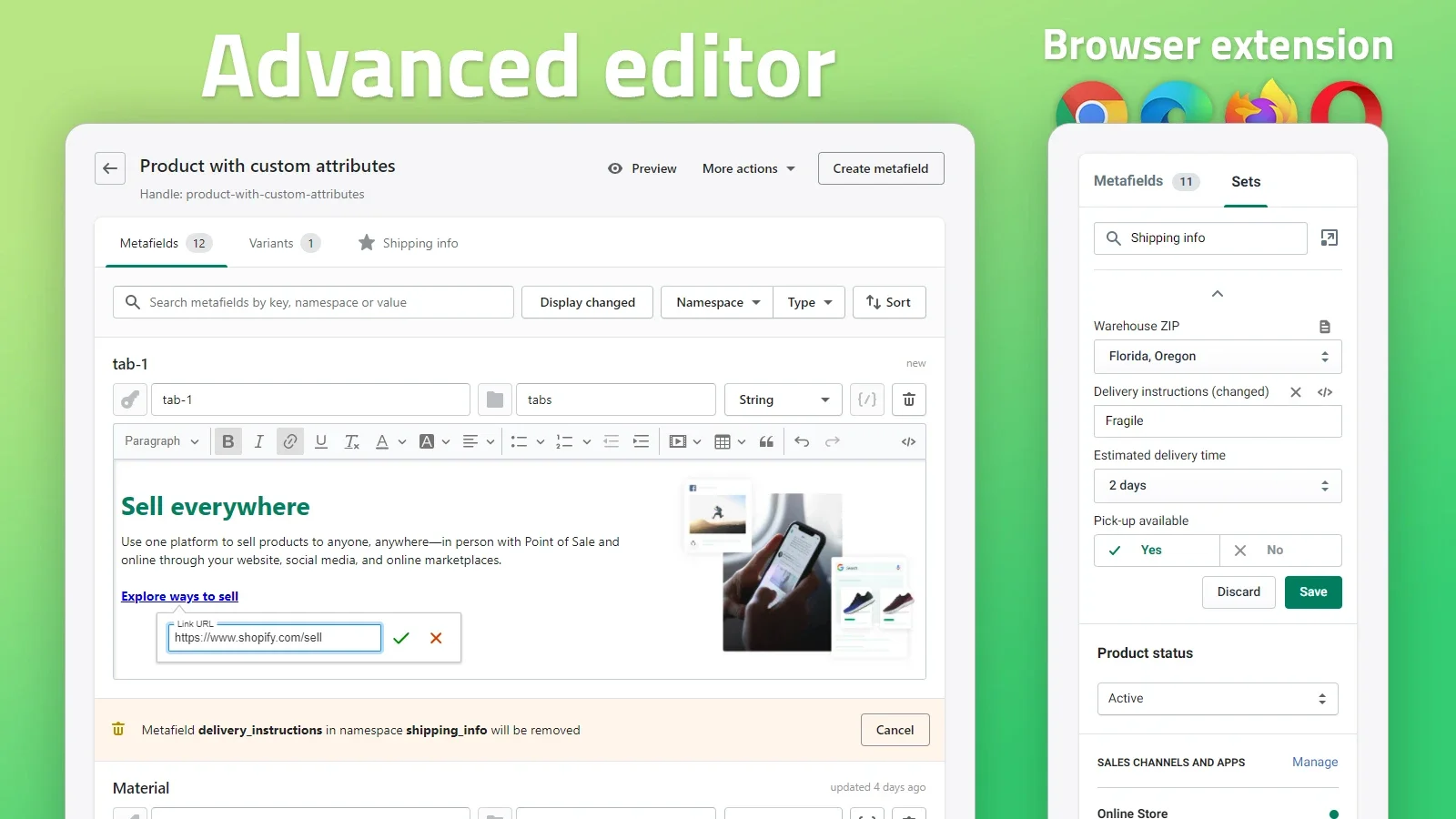
Big news for our browser extension fans! The updated version features the WYSIWYG editor, supports metafield sets and is compatible with all admin dashboard languages available (this Shopify feature is currently in BETA testing).
FAQ
What is a metafield set in Metafields Guru?
A metafield set is a feature, available on advanced plans, that lets you create a group of metafields and apply it to all entities of a specific resource type - for example all products - instead of creating each metafield one product at a time.
Can I scope a metafield set to only some products?
Yes. You can create a set for a filtered selection of products - by a specific vendor, a certain product type, or a specific tag - instead of applying it to your entire catalog.
Which field types can I use in a metafield set?
Plain Text, HTML (with a WYSIWYG visual editor), Integer, Float (decimal), JSON, Select, Multiselect, and Boolean.
What's new in the July 2021 browser extension update?
The updated browser extension features the WYSIWYG editor, supports metafield sets, and is compatible with all Shopify admin dashboard languages (a Shopify feature that was in beta at the time).
Try it
Open Metafields Guru from your Shopify admin and set up your first metafield set from Metafield sets. New to Metafields Guru? Install it from the Shopify App Store or read the full metafield sets setup guide.