How to delete metafields in bulk with data import
Short answer: export the metafields to a CSV file, clear the value column for every metafield you want gone (keep the identifier, namespace, and key), then re-import the file with the empty metafields option set to Delete. Every row with a blank value is removed from your store in a single pass. This is the only method in Metafields Guru that can wipe an entire namespace whose keys are auto-generated or too numerous to list.
This is one of three ways to bulk-delete metafields in Metafields Guru. If you are not sure it is the right one for your task, see How to delete metafields in bulk for a comparison of all three.
When to use this method
Deleting metafields through export + import is the most efficient approach when:
- you need to remove a large number of metafields at once;
- you want to delete every metafield in a namespace, regardless of its key;
- the keys are auto-generated or too numerous to type out one by one;
- your selection cannot be expressed as a filter, so you need to eyeball the data and decide row by row;
- you already prefer managing store data in CSV spreadsheets.
For a handful of unrelated metafields, the Excel-like editor is quicker. For a single known metafield across a filtered set of resources, use the bulk editor.
How it works
Shopify's API has no concept of an empty metafield - so clearing a metafield's value is how you delete it. This method uses that fact:
- Export the metafields you might want to delete into a CSV file.
- Clear the values of the ones you actually want gone, in any spreadsheet editor.
- Re-import the file with the delete empty metafields option enabled. Every row with an empty value is removed from your store; rows that still have a value are left untouched (or updated to that value).
Your CSV needs four pieces of data per metafield:
- resource identifier - product ID, product handle, SKU, collection ID, order ID, customer email, and so on;
- metafield namespace;
- metafield key;
- metafield value - leave it empty to delete the metafield; fill it in to update the metafield instead.
Both file layouts are supported:
- the "rows" format - one metafield per row, best for large exports and for whole-namespace clean-ups:

- the "columns" format - one resource per row, one column per metafield:

Step 1 - Export the metafields you might delete
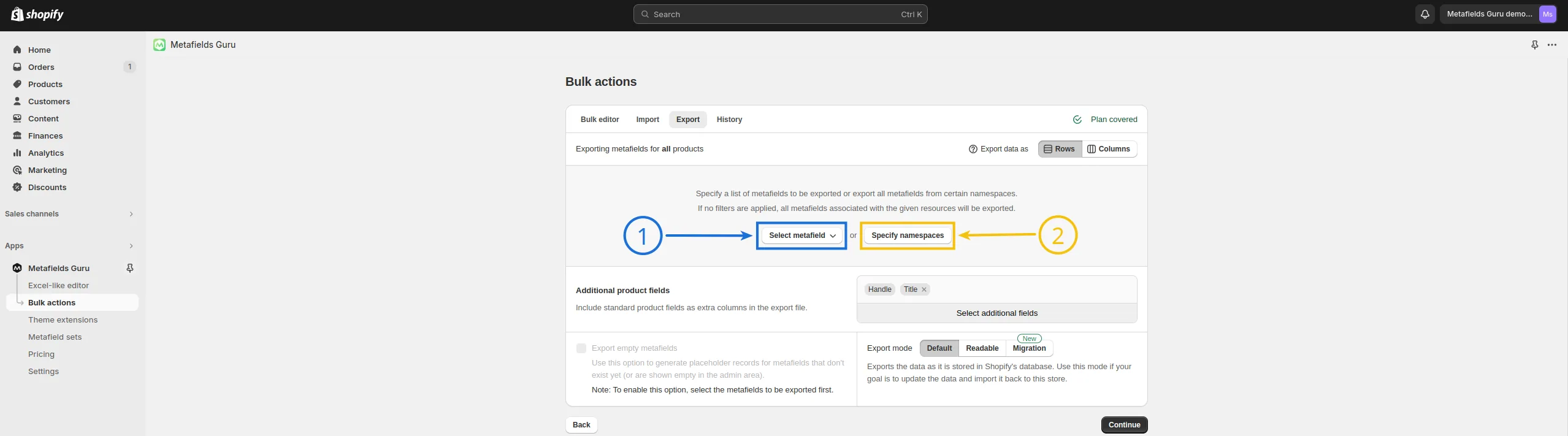
Open Metafields Guru → Bulk Actions → Export and configure the task. The full export walkthrough is in How do I export metafields to a CSV file? - the settings that matter here are:
- Resource type - the resource whose metafields you are cleaning up (products, collections, and so on).
- File format - choose rows. In this format you can target metafields by namespace regardless of key, which is exactly what a bulk delete needs.
- Metafields to export - either list the specific namespace/key combinations, or specify up to 10 namespaces and let the export pull every metafield in them, whatever the key.
- Filters - narrow down to a subset of resources if you only want to clear metafields on some of them; leave the filters empty to cover the whole store.
- A resource identifier column (product handle, SKU, collection ID, and so on) so the import can match rows back to resources.
Then download the file from Bulk Actions → History → Results.
The file you just exported holds the original values and stays in Bulk Actions → History. If the import goes wrong, re-import that untouched export to restore everything. Keeping a local copy before you start editing is still a good idea.
Step 2 - Clear the values in a spreadsheet editor
Open the CSV in Excel, Numbers, Google Sheets, or any editor you like. Now blank out the value of every metafield you want to delete, keeping the identifier, namespace, and key columns intact.
- Rows format - the fastest option. To delete everything in the export, select the entire value column and clear it in one action. To delete only some rows, clear the value cells on those rows (or delete the whole rows you want to keep, so that only the ones to be removed remain, then clear that column).
- Columns format - clear the whole column of the metafield you want to remove. Repeat for each metafield column.
Do not delete the identifier, namespace, or key - the import needs them to know which metafield on which resource to remove.

Save the file as CSV.
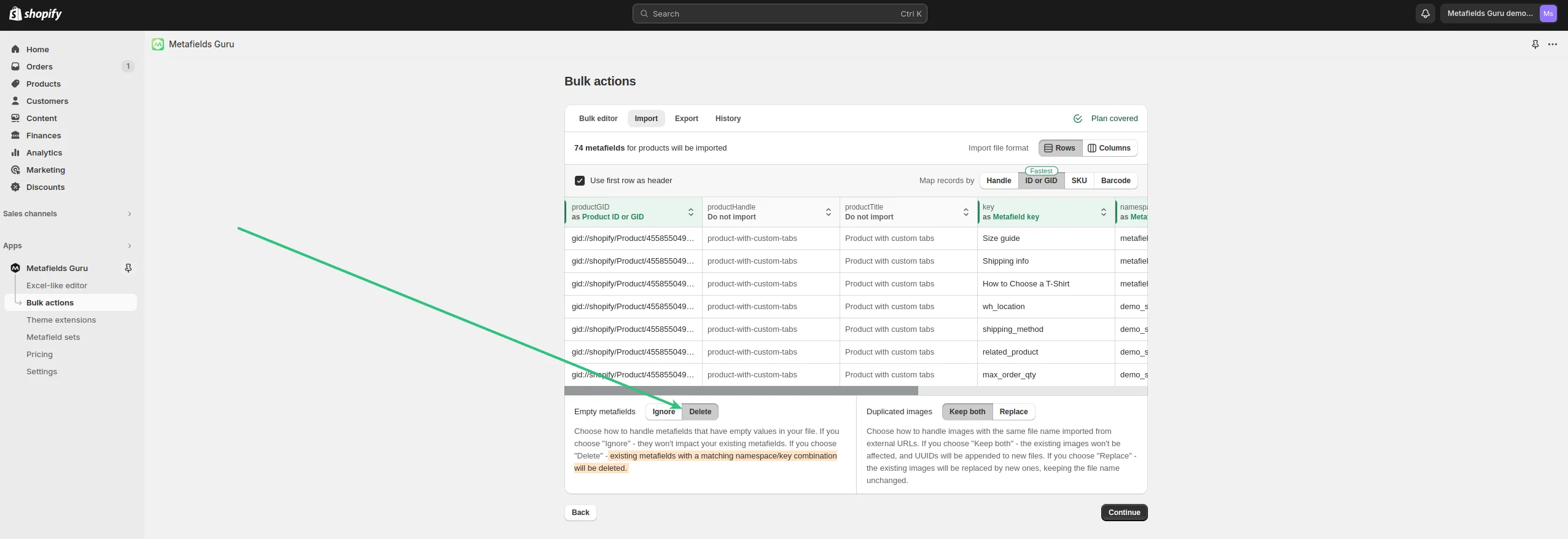
Step 3 - Re-import with "delete empty metafields"
- Go to Metafields Guru → Bulk Actions → Import.
- Upload your edited CSV (button or drag-and-drop). Confirm the resource type and delimiter.
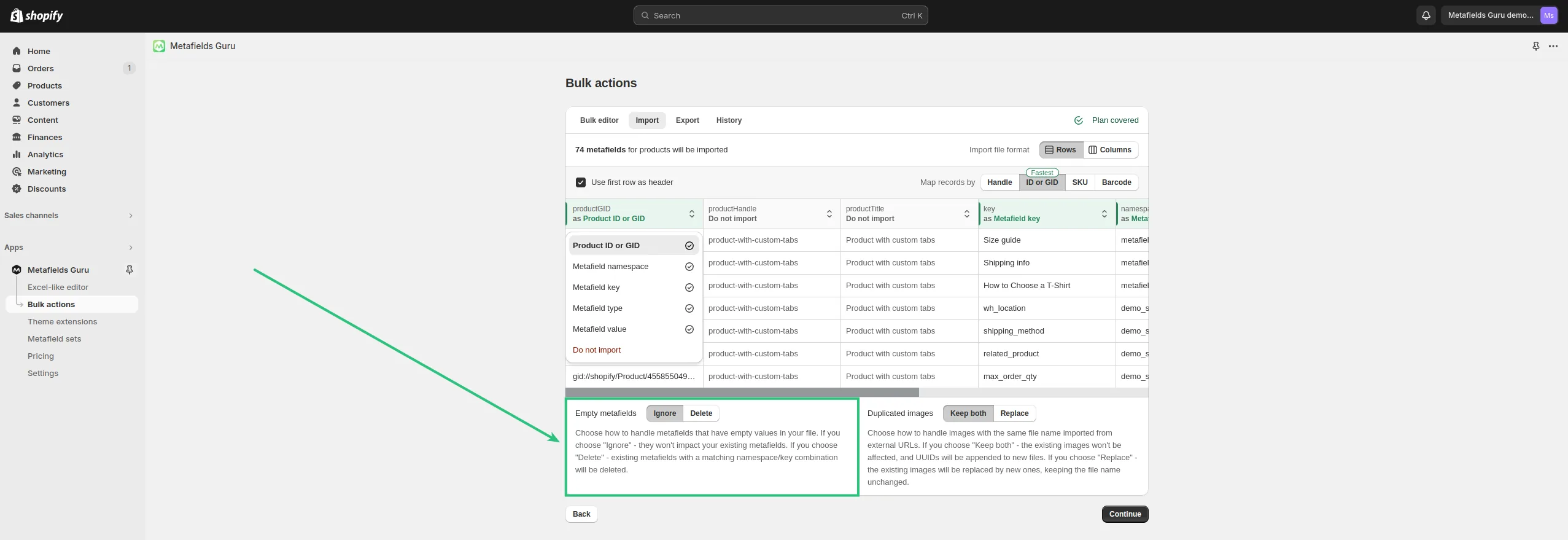
- On the mapping step, match the columns to resource identifier, namespace, key, and value. See How do I import metafields from a CSV file? for details.
- Set the empty metafields option to Delete. This is what turns every blank value into a deletion - with the default setting, blank values are ignored and nothing is removed.
- Review and launch the import.
When the task finishes, the metafields whose values you cleared are gone from your store.
Deleting an entire namespace
This is the workflow that the Excel-like editor and the bulk editor cannot do cleanly, because they need every key spelled out.
Say you want to remove everything under the reviews_import namespace on products, where an integration created hundreds of metafields with keys like reviews_import.rating_47a9f, reviews_import.body_1c33e, and so on.
- Export - resource type Products, format rows, namespaces field set to
reviews_import(add more namespaces, up to 10, if you are clearing several at once). Include the product handle as the identifier. Do not add key filters - you want every key. - Edit - open the CSV, select the entire value column, clear it, save.
- Import - upload the file, map the columns, set empty metafields to Delete, launch.
Every metafield in that namespace, on every product the export covered, is removed - without you ever typing a single key.
Tips and limits
- Import speed is governed by Shopify's API rate limits - see How do I make import/export work faster?.
- CSV size limits by plan: 50 MB on Rookie and Adept, 250 MB on Guru, 500 MB on Guru Plus. Split very large clean-ups into several files.
- This method deletes metafield values on resources. It does not touch metafield definitions or metafield sets - remove those from Shopify's Settings → Custom data screen.
Frequently asked questions
Does this also delete the metafield definition?
No. Export + import clears metafield values on resources only. The metafield definition and any metafield sets stay in place - remove those separately from Shopify's Settings → Custom data screen or from the app's definitions screen.
Can I undo a bulk delete done this way?
Yes. The export file you started from is the backup - it still holds the original values and stays in Bulk Actions → History. Re-import that untouched file to restore every value the delete removed.
How do I delete every metafield in a namespace?
Export in rows mode with the namespace (up to 10 namespaces at once) entered in the namespaces field and no key filters, clear the whole value column in your spreadsheet editor, then re-import with empty metafields set to Delete. See Deleting an entire namespace above. This works even when every key is auto-generated.
Why do I clear the value instead of deleting the row?
Deleting a row just means that metafield is not in the file, so the import skips it and leaves it on the store. A row that is present with a blank value, imported with delete empty metafields, is what tells Metafields Guru to remove that metafield.
Rows or columns format for deleting?
Use rows for bulk deletes. It lets you target metafields by namespace regardless of key, clear the single value column in one action, and handle whole-namespace clean-ups. The columns format is fine only when you know each metafield and want to clear a small, fixed set of them.
How many metafields can I delete in one import?
As many as fit in the CSV size limit of your plan - 50 MB on Rookie and Adept, 250 MB on Guru, 500 MB on Guru Plus. There is no per-run cap on the number of metafields; only the Shopify API rate limits affect how long the run takes.
Related
- How to delete metafields in bulk - all three methods compared
- How do I export metafields to a CSV file?
- How do I import metafields from a CSV file?